Android guide
Audio stops when your Android screen turns off?
Music, podcasts or sleep sounds cutting out when you lock your phone, or halfway through the night? Start with these three checks. They apply to whichever audio app you use.
Fix it now
Start with battery restrictions, then check app updates and Battery Saver. Each can interrupt playback for a different reason, so a change to one setting does not cover all three.
1Set the app to Unrestricted battery
This exempts the app from the battery optimization that lets your phone restrict it in the background. Choose the app that stops playing. The screenshots use Veil as an example.
Choose your phone
Pixel, Motorola, and most other phones
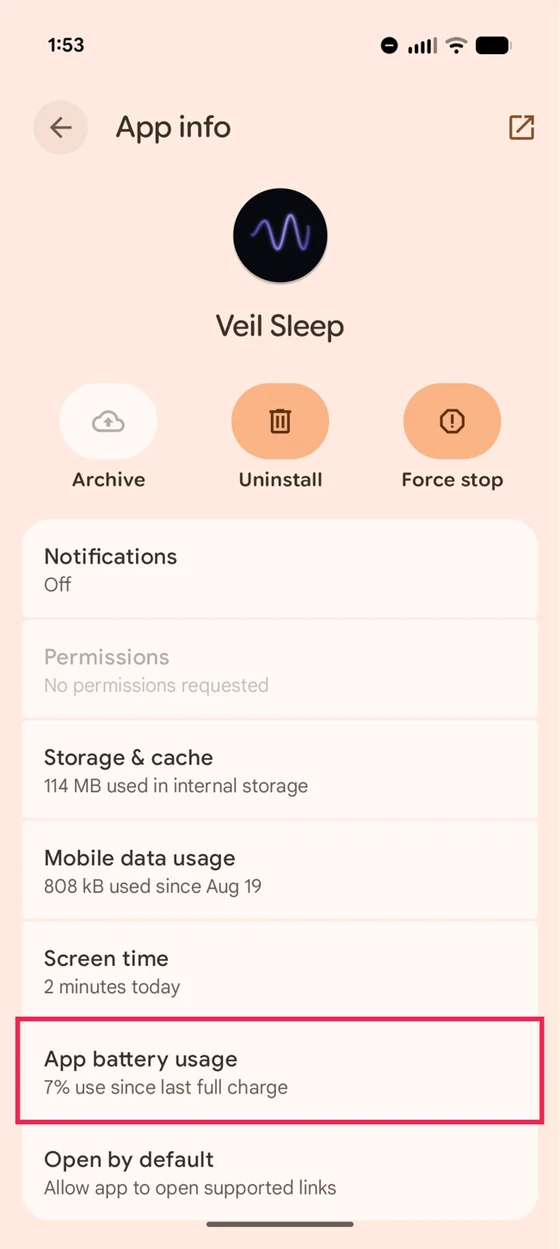
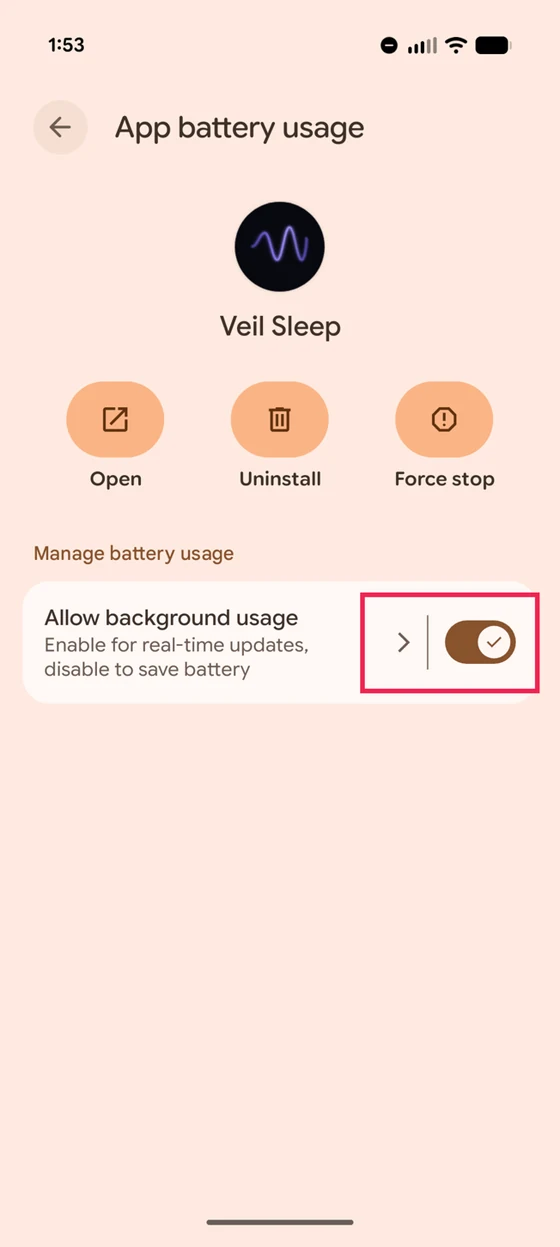
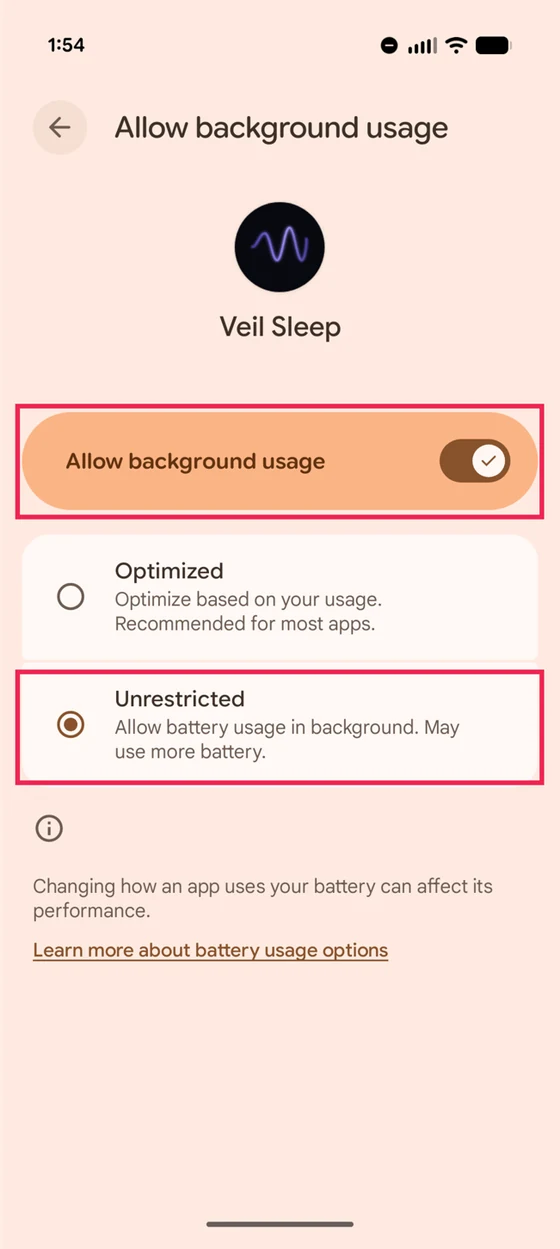
Swipe sideways to see all three screenshots.
Captured on a Pixel running Android 16 in August 2026. Menu wording moves around between versions, so if yours differs, look for the most permissive battery option offered.
Samsung Galaxy
Samsung has a second setting worth checking: Settings › Battery › Background usage limits. Make sure your audio app is not listed under Sleeping apps or Deep sleeping apps. If it is, remove it.
Xiaomi, Redmi, and POCO
On the same screen, turn Autostart on. Xiaomi phones are the strictest in the category, so both settings matter here.
OnePlus and Oppo
My phone is not listed
Open your app list, find the app, and choose whichever battery option is the most permissive one offered. The wording varies: Unrestricted, No restrictions, Don't optimize, and Allow background activity all mean the same thing.
2Update your sleep app while you are awake
An app update can end the sound even when every battery setting is correct. Android stops an app's running process when it installs a new version. If Google Play updates your audio app during the night, playback can stop with it.
We see this in Veil's own reliability reports: overnight app updates are a recurring cause of interrupted nights. Veil is affected too, which is why this check belongs near the top of the guide.
- Open Google Play and find the audio app you rely on overnight.
- Open its store page, tap the three-dot menu, and turn off Enable auto update for that app.
- Keep updating it manually during the day. Check its Play Store page regularly, tap Update when available, and reopen it before your next night of playback.
This changes automatic updates for that one app. You can keep automatic updates on for your other apps. Updates still bring useful fixes and security improvements, so choose when to install them rather than skipping them.
Google's instructions for individual app updates. Google may still install an update that fixes a critical security vulnerability regardless of this setting.
3Stop Battery Saver switching itself on
This is separate from the per-app setting in step 1, and it catches people who think they already fixed the problem. The tell is audio that survives some nights and not others, with no pattern except how charged the phone happened to be.
Check the automatic trigger in Settings › Battery › Battery Saver. If it turns on at a set battery level, lower that threshold or disable the schedule for nights when you need continuous playback. Keeping the phone charged also helps it stay above that threshold.
Still stopping? Work out what happened
These look identical in the morning but have different causes. Check your phone the next time it happens, before you reopen anything.
Other things that stop audio
None of these announce themselves, so they are worth a look if the steps above did not do it.
A phone cleaner or booster app
If you have one installed, check this first. Cleaner and booster apps close background apps aggressively, which is exactly the behaviour you are trying to prevent, and they can override the battery settings above. They also do very little for performance on a modern phone. Uninstalling is usually simpler than configuring an exception.
Your phone restarts itself overnight
Samsung phones can be set to reboot on a schedule, often in the small hours, and a reboot ends everything including audio. Check Settings › Battery and device care › Auto optimization and turn Auto restart off. If your sound stops at almost exactly the same time every night, this is very likely why.
Adaptive Battery learning the wrong lesson
Adaptive Battery restricts apps it decides you do not use much, and an app you only ever open at bedtime looks exactly like an app you barely use. Setting it to Unrestricted in step 1 overrides this, which is another reason that step matters more than it looks.
“Pause app activity if unused”
A separate switch, found under Settings › Apps › [app] › Unused app settings, that revokes permissions and restricts an app after a period without use. It is on by default on newer Android versions. Turn it off for anything you rely on overnight.
A bedtime or Do Not Disturb routine
Digital Wellbeing bedtime mode, and some manufacturer sleep routines, can enable Battery Saver as a side effect of switching the screen to greyscale at a set hour. If your audio dies at the same time your phone goes monochrome, check what else that routine turns on.
A Bluetooth speaker going to sleep
If you play to a speaker or earbuds, the sound can stop because the speaker powered down, not because the app did. Many go idle on their own after a set time or at low battery. The tell is that your phone still shows audio playing while the room is silent.
Memory pressure from other apps
When memory runs critically short, Android reclaims it by closing background processes. Playing audio sits near the back of that queue, so it takes genuine pressure to reach, which is why this is a rarer cause than most advice suggests. If you routinely leave a demanding game or a browser with a great many tabs open, closing those before bed is worth trying, but do not start here.
Extra protection: keep a bedside mode visible
If your app offers a screen-awake or bedside mode, it is another option for nights when you can leave the phone charging. A visible app has higher process priority than one running only in the background, which can help under memory pressure. It still cannot keep playing through its own update or a phone restart.
How to use Veil's Bedside Clock Mode
Start your sound, tap the crescent-moon icon in the bottom playback bar, turn on Reduce interruptions in Bedside Clock Mode, then choose Start now. Leave the phone plugged in with the clock visible; do not lock it or press the power button. Charging lets Veil keep its very dim clock on screen and remain foregrounded, while Reduce interruptions silences calls and notifications but still allows alarms.
If you unplug or lock the phone, the sound keeps playing normally, but this extra layer of protection ends. The battery and update checks above still apply.
Why Android does this
The short version: Android is not actually hostile to background audio. It has a supported way to keep playing with the screen off, and the battery settings above opt out of restrictions your phone's manufacturer added on top.
The longer technical explanation
An app playing audio you asked for is meant to run a media foreground service, and Google's own documentation describes this as how a music player “keeps playing music when the user has locked their device or is using another app.” An app doing that correctly is not treated as idle: the App Standby rules explicitly exclude any app with “a process currently in the foreground, either as an activity or foreground service.”
Doze is similarly narrower than its reputation. It defers network access, wake locks, alarms, jobs and syncs while a phone sits unused. It does not switch off a foreground service that is actively playing audio.
So on a stock Android phone, with an app that is implemented properly, playback should survive the night. Three things break that promise:
Manufacturer power management
This is the big one. Samsung, Xiaomi, OnePlus, Oppo and Huawei all ship power-saving layers that go beyond what Android requires and that can stop a properly protected media service anyway. Android records why each process ended, and reading that record back from our own users we see sessions terminated while still holding foreground-service priority, frequently with a manufacturer cleaner named as the thing that did it. That is the gap between what Android documents and what a given phone does.
Genuine resource pressure
When memory runs critically short, Android terminates background processes to reclaim it. Foreground services sit near the back of that queue, which is protection but not immunity. It takes real pressure to reach them, so this is a less common cause than it is usually given credit for.
Things that end the process outright
A scheduled restart, or an app update installing overnight. Swiping the app off the recents screen belongs here too for apps that treat it as a stop instruction, Veil among them, though behaviour varies. None of these are power management at all. They stop playback because the process stops existing, which is why no battery setting will help with them.
Two things follow from this. First, the fixes on this page are mostly about opting out of manufacturer restrictions rather than out of Android itself. Second, when an app stops overnight it is not automatically the platform's fault: a defect in the app can look exactly the same from the outside. That is worth saying plainly, because we have shipped a few of those ourselves and found them in this same data.
Sources: Android background playback documentation, Doze and App Standby documentation, and Google's Pixel battery guidance.
Common questions
Why does my phone stop playing audio when the screen is off?
It should not, and on stock Android with a properly built app it usually does not. Audio you started yourself is meant to run in a media foreground service, which Android is explicitly designed to keep alive with the screen off. When it stops anyway, the cause is normally one of three things: a manufacturer power-saving layer that goes beyond Android's own rules, something that ended the process outright such as a scheduled restart or an overnight update, or a bug in the app itself.
Does this happen on every Android phone?
No, and that is the most useful thing to know about it. The behaviour varies enormously by manufacturer, because it comes mostly from the layers phone makers add rather than from Android itself. Samsung, Xiaomi, OnePlus, Oppo and Huawei all ship power management stricter than anything Google requires. Pixels and other stock-Android phones are generally the least affected, which is why the same app can be flawless on one phone and stop nightly on another running the same Android version.
Which setting actually fixes it?
Start with Unrestricted battery usage. Then check automatic app updates and whether Battery Saver turns itself on overnight. Each addresses a different cause: Unrestricted cannot prevent an app update from stopping playback. A bedside mode while charging can add protection against background restrictions.
Can an app update stop my sleep sounds overnight?
Yes. Android stops an app's process when it installs an update. This affects Veil too, even with Unrestricted battery enabled. You can turn off automatic updates for just your sleep app and update it manually while you are awake. Follow step 2 above, and keep installing updates regularly.
Will Unrestricted battery drain my phone overnight?
It can, and Android says so on the setting itself: the Unrestricted option is described as “Allow battery usage in background. May use more battery.” For an app you are deliberately keeping awake all night, that is the trade you are making on purpose. In practice the load from quiet audio with the screen off is modest, since the screen is what really drains a phone, but charging overnight is the sensible habit if it is practical for you.
My audio stops at almost exactly the same time every night. Why?
A consistent time points at something scheduled rather than something reactive. The usual causes are a scheduled automatic restart, which some Samsung phones have enabled by default, a Play Store update installing overnight, or a bedtime or Do Not Disturb routine with power saving attached to it.
Should I use a task killer or phone cleaner app?
No. Cleaner and booster apps close background apps aggressively, which is precisely the thing you are trying to prevent. They are a common cause of audio stopping part-way through the night and they do not meaningfully improve performance on a modern phone.
Does swiping the app away from recents stop playback?
In Veil, yes, and that is intended: we treat it as you telling us to stop. Behaviour varies between audio apps, and some keep playing, but leaving the app in recents is the safe habit when you want audio to continue overnight.
Does the same problem happen on iPhone?
Far less often. iOS grants audio playback a protected background mode and generally honours it for as long as audio is actually playing, so there is no equivalent set of per-app battery settings to change. Almost everything on this page is specific to Android.
What we are doing on our side
None of this should be your job, and we treat it as ours. Veil watches for the moment the system stops playback and repairs it automatically where Android allows, which covers a good share of cases without you noticing anything.
We read the previous night's failed sessions every morning, across thousands of overnight sessions on real phones, and most of our releases have come directly out of what that data showed. It is also how we know the difference between a phone stopping Veil and Veil stopping itself, because both appear in the same record and only one of them is our bug to fix. When it is ours, we fix it. Android does not let us override a manufacturer's battery policy ourselves, so the battery controls above still have to be changed on the phone. Bedside Clock Mode is the strongest extra protection Veil can provide from inside the app: while the phone is charging, it keeps Veil visibly foregrounded as well as running its media service.
If you want to try Veil tonight, start with one of the four free sounds and run through the three checks at the top of this page. Bedside Clock Mode is an optional extra when you can leave the phone charging.
Using Veil and still losing sound?
If none of the above worked in Veil, tell us. The app itself may be at fault, and from the outside that can look the same as your phone stopping it. If you use another audio app, these details will also help its developer investigate.
- Update Veil from Google Play while you are awake. Our releases include reliability fixes, so check for an update and reopen Veil before your next night of playback.
- Reopen it and note roughly when it stopped. The approximate hour is genuinely useful to us, because a consistent time and a random time point at completely different causes.
- Note what the phone looked like. Specifically whether the playback notification was still there, and whether Veil had restarted or was gone entirely. That single detail separates a crash from a system termination faster than anything else.
- Send it to us. The button below opens an email with the fields we need already laid out.
We will look for your case directly in the reliability data. Nights that fail are the ones we learn the most from, and they are how we tell our bugs apart from the platform's.