Behind Veil
Create your own sleep sounds:
inside Veil Studio
Updated
Veil Studio lets you create your own sleep sounds on iPhone and Android. Start with generated noise or bring a sound you already like into the editor, reshape it while you listen, and save your version. It is part of Veil, a white noise and sleep sounds app that generates audio on your device, without recordings, ads or an account.
A sound can be almost right. Brown noise has the depth you want, but a little too much rumble. A fan has the right pulse, but its upper edge feels sharp. Turning the volume down changes everything together. What you want is to change the part that bothers you.
Built to be the most customizable sleep sound app. That is the idea behind Studio: the sound library gives you a place to start, and you decide where it goes. Building it meant solving two problems together: how to give someone meaningful control over a continuously generated sound, and how to make that control feel understandable on a phone.
A sound library is a starting point
Veil already has controls tailored to its library sounds: the character and brightness of noise, for example, or the pitch and pulse of a fan. Studio takes that further. You can start with Deep Rumble, Soft Hush or Airy Wash, or bring a supported library sound and its current tuning into Studio.
The editor gives you three points to drag across a curve. Move a point sideways to choose the part of the sound you want to change, and up or down to emphasize or soften it. Width controls how broad that change is. You hear your adjustments as you make them.
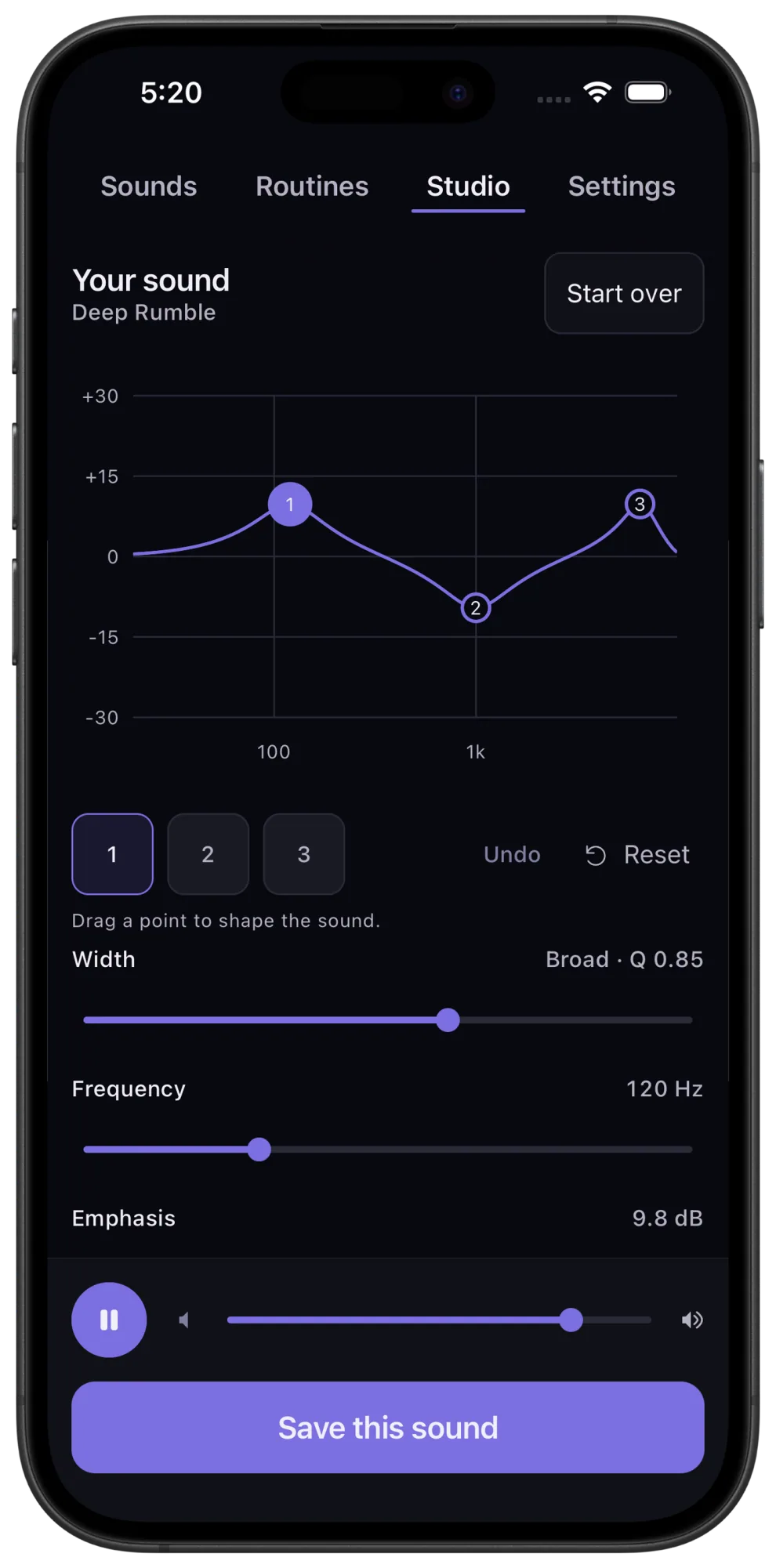
You do not need to know a frequency in hertz to begin. Listen, move a point, and decide whether you prefer the result. The numerical controls are there when you want a smaller or more repeatable adjustment.
Three ways to make a sound yours
- Keep the depth, lose the weight. Start with Deep Rumble and soften a broad area on the left of the curve. Listen for a lighter low end while keeping the character you liked.
- Keep the air, soften the edge. Start with Airy Wash and lower a point toward the right. Adjust its width to change a small bright region or a broader stretch of upper frequencies.
- Give a familiar sound a different character. Bring a tuned library sound into Studio, then make a broad lift or dip through the middle. Compare it with your starting point using undo and reset.
These are directions to explore, not settings everyone should use. Your speaker, room and preferences all affect what feels right. If you want to hear the starting colors first, compare white, pink, brown and the other noise colors in your browser.
Making live changes sound smooth
A curve is easy to draw. Making the sound follow your finger without a click is a different problem. A sudden change in an audio filter can produce a discontinuity you hear as a pop. Rebuilding the sound each time you move a control would also make the interaction feel disconnected.
Studio updates the existing audio filters and smooths the transitions between their settings. The generated source keeps running underneath. You are changing the sound in progress, rather than asking a recorded track to start again.
The points also interact. Two broad boosts can overlap and add much more energy than either one alone. Studio manages input level and protects the output so those combinations stay within the engine's limits. A heavily reshaped sound can still feel louder or quieter; precision volume remains part of finding the balance you like.
The line on screen shows the combined effect of your filters. It is not a decorative waveform, and it is not a measurement of everything coming out of the speaker. Keeping that distinction clear makes the curve useful: it shows what your edits are doing to the starting sound.
Making the controls feel like an instrument
The challenge was to offer depth without requiring an audio-engineering vocabulary. Three visible points give you something direct to touch. Frequency spacing follows the way musical intervals work, so low, middle and high regions each have room on the screen.
Points can cross or sit on top of each other. Numbered selectors let you choose the point you mean even when your finger cannot separate them. Frequency, emphasis and width sliders offer a precise alternative to dragging, including when touch or text-size needs make the graph less convenient.
Undo makes an experiment reversible. Reset takes you back to the sound you started editing. Those controls matter because customization should invite curiosity: you can try a dramatic change without losing the version you liked.
Studio also keeps a snapshot of a library sound when you bring it into the editor. Changing that sound elsewhere later does not quietly rewrite your Studio creation. A saved sound should remain the sound you chose.
Create it once. Come back to it.
Give your creation a place in your day: save it in a routine with your volume, timer, fade and optional bedside clock. Create your sound once, then start your whole setup in one tap.
With Premium, you can save up to six Studio sounds, replay and refine them, and use them in the Mixer or a routine. Mix up to three sounds with independent volumes, or keep a single carefully shaped sound as your nightly choice. The sound is generated on your device and works offline.
Studio is free to explore with its free starting sounds while the app is open. Saving, replaying and refining saved Studio sounds, and auditioning in the background, require Premium. Library sounds that require Premium keep that requirement when used as a Studio starting point.
You can choose monthly or annual Premium, or buy lifetime access once. The goal is simple: give you enough control to make something worth coming back to, without making you learn a studio full of equipment to get there.
Create your sound in Veil Studio
Try Studio on iPhone or Android. Explore free starting sounds, shape them while you listen, and choose Premium when you want to save your creations. Monthly, annual and lifetime access are available.